










Instructions
instructions intro
instructions step 1 title
Start in the drawing tool by designing your part in the browser, or upload an existing DXF or DWG file. STEP files (.step/.stp) are uploaded via the import function.
- instructions step 1 item 1
- instructions step 1 item 2
- DXF and DWG are uploaded via the project manager. STEP via the import function.
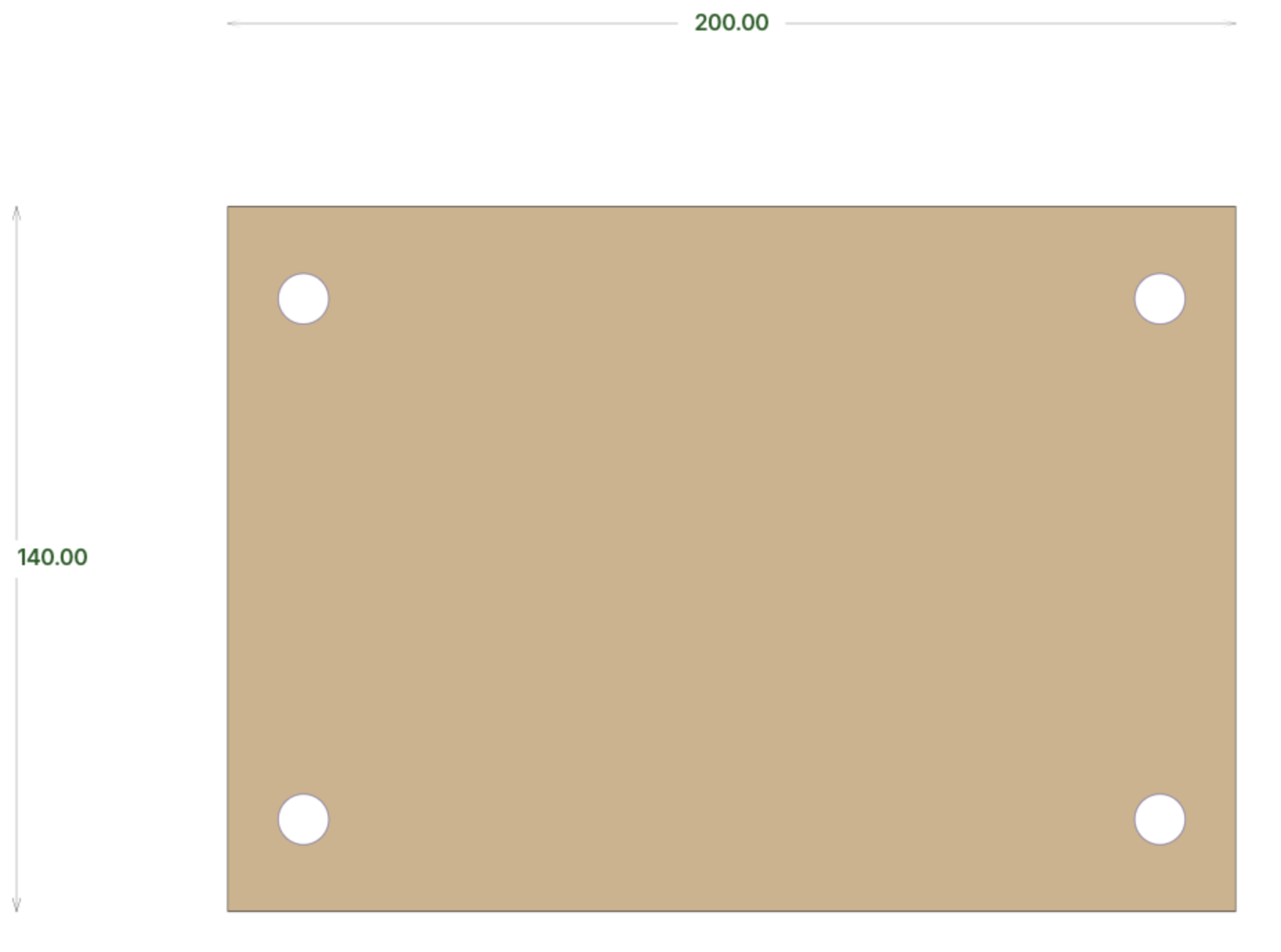
2D view – draw and edit directly in your browser
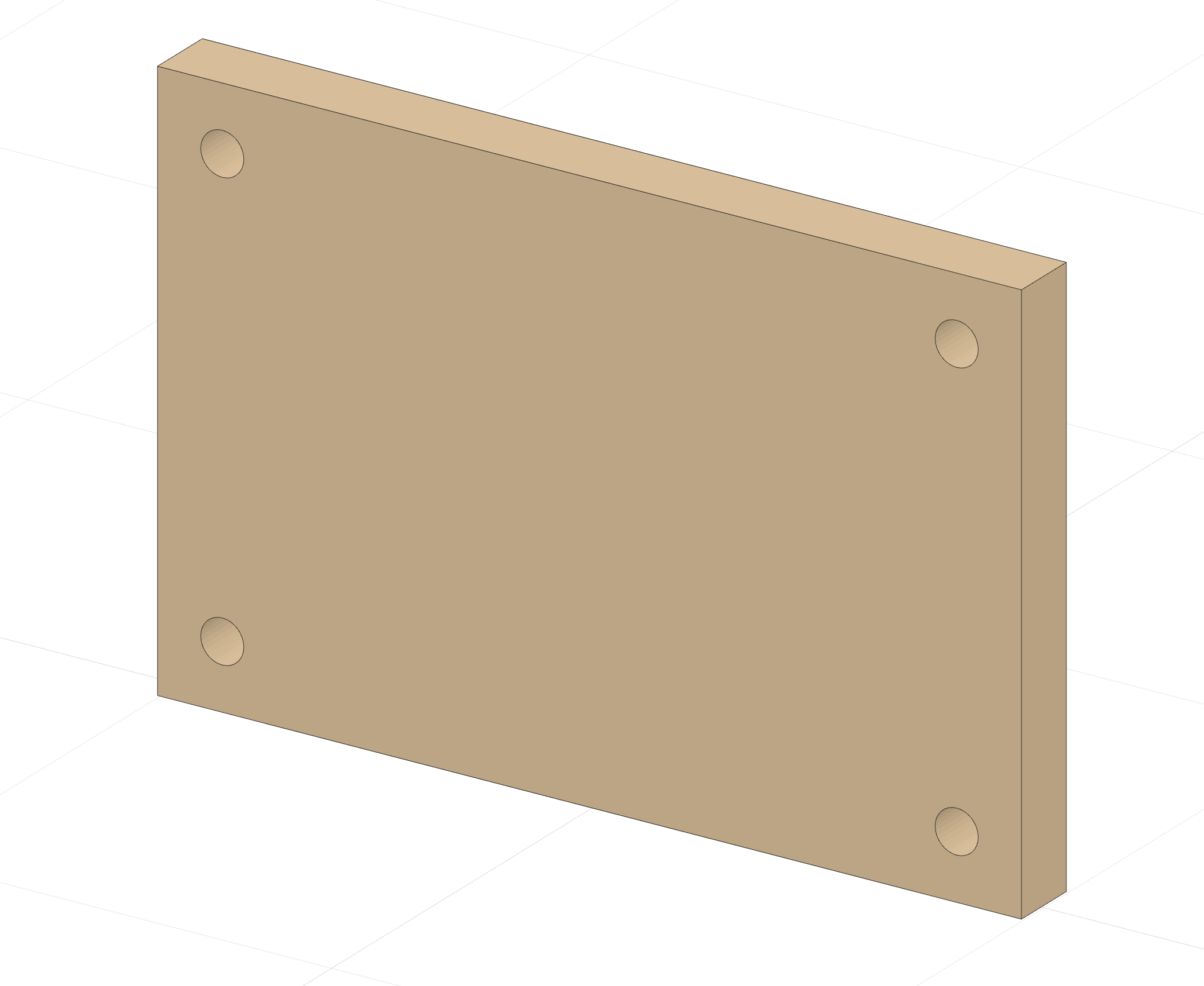
3D view – see how your part looks before you order
instructions step 2 title
instructions step 2 text
- instructions step 2 item 1
- Maximum part size is 2400 × 1200 mm (can be rotated).
- instructions step 2 item 3
instructions step 3 title
instructions step 3 text
- instructions step 3 item 1
- instructions step 3 item 2
- instructions step 3 item 3
instructions step 4 title
instructions step 4 text
File formats we accept
NevrCut accepts drawings in DXF, DWG and STEP. Choose the format that fits your CAD software.
We accept DXF, DWG, STEP (.stp), SVG, EPS and AI
.DXF
.DWG
.STEP/.STP
.SVG
.EPS
.AI
Upload DXF, DWG, SVG, EPS or AI in the drawing tool. STEP files are uploaded via the import function. SVG/EPS/AI are converted automatically.
- DXF and DWG: upload directly in the drawing tool via the project manager (one part per file).
- STEP (.step/.stp): upload via the import function – thickness may be read automatically from the file.
- DWG is automatically converted to DXF on upload.
instructions tips title
- instructions tip 1
- instructions tip 2
- instructions tip 3